

Replacement parts are useful when a LEGO build is missing a tile, hinge, wheel, minifigure part, or small decorative piece. The catch is that fit alone does not tell you whether a part is original, compatible, reproduction, aftermarket, or uncertain. Treat the purchase as a sorting problem before it becomes a display problem.
Key takeaways
- Why replacement parts need a system
- What buyers usually get wrong
- Separate before you sort
Why replacement parts need a system
A mixed-parts order can save a build, but it can also blur what is original to the set. LEGO’s own replacement-parts page separates missing pieces, broken pieces, and pieces bought to complete a creation, which is a useful reminder to record why each part was acquired.[1] Physical fit is not proof of origin. If you care about completeness, disclosure, or keeping a childhood set honest, the part’s status matters as much as whether it clips into place.
What buyers usually get wrong
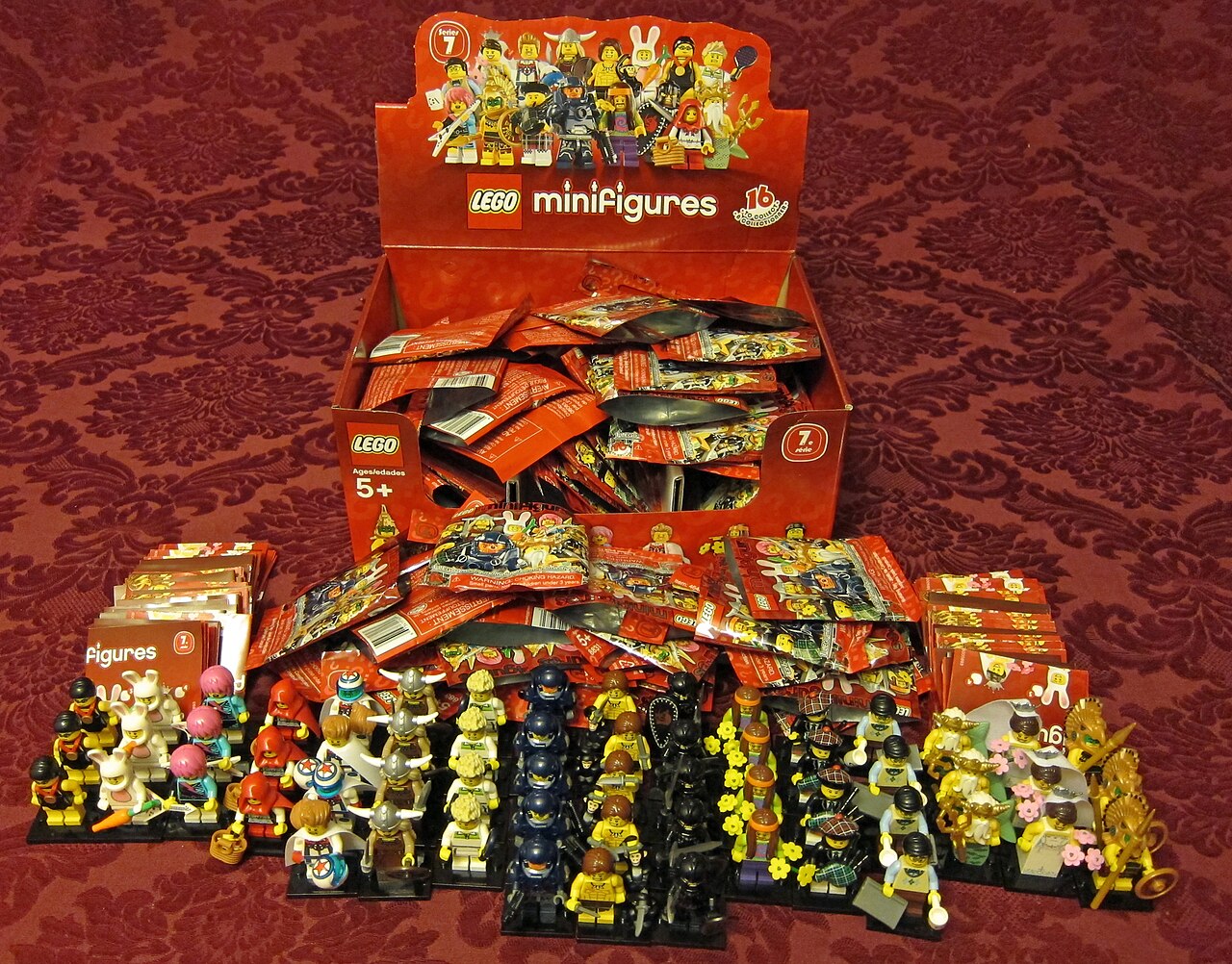
The common mistake is to buy quickly, pour the order into the main parts bin, and assume everything is solved. Months later, you may not remember which parts were original, which came from a seller’s mixed lot, and which were only bought because they looked compatible.
Separate before you sort
Keep new arrivals separate from the collection until you have checked them. Use a small bag, tray, or box marked with the order date and seller. If the listing clearly described the parts as original, record that. If it used softer wording such as compatible, replacement, custom, unbranded, or fits LEGO-style bricks, record that too. Unclear parts should stay marked as uncertain. A parts log built the same way helps when you inherit mixed bricks and instructions and need to separate them by source.
Read the listing like a condition note
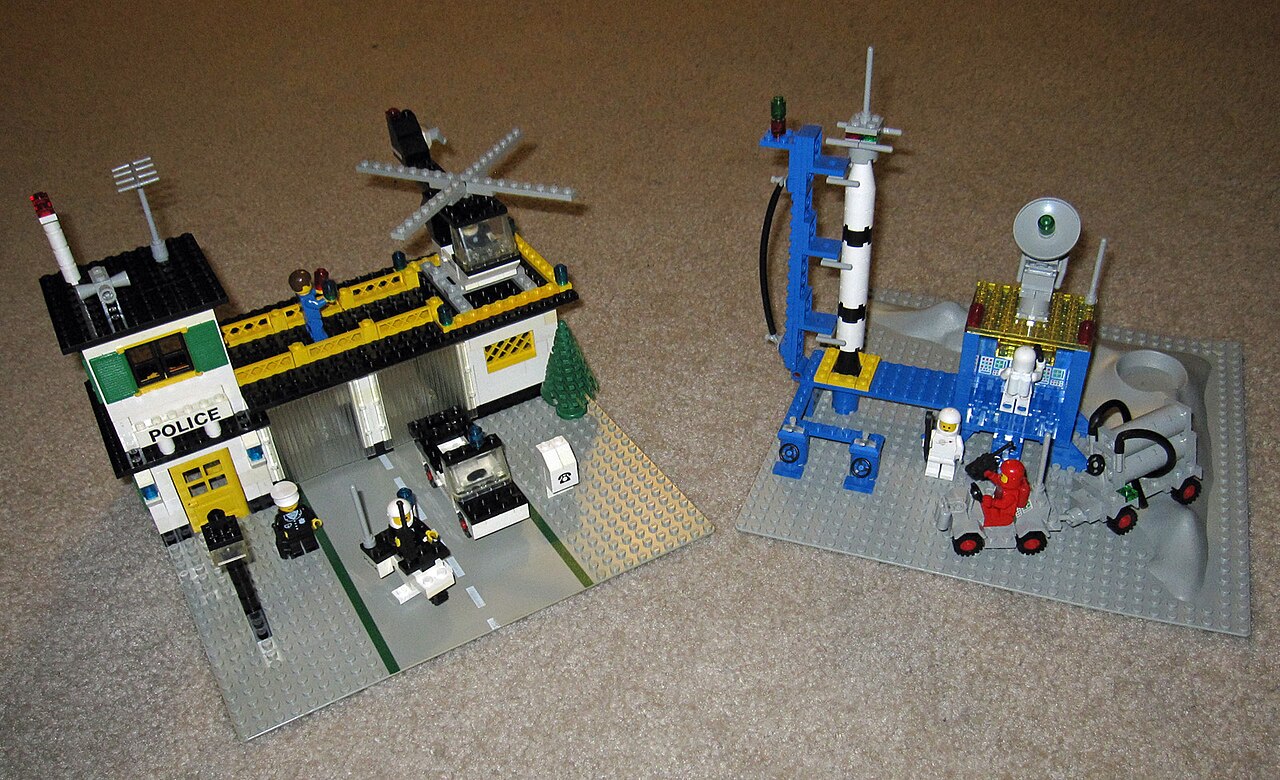
Look for direct wording about authenticity, condition, new or used status, colour, quantity, and the exact part being sold. The photos matter too. LEGO Pick a Brick lets buyers browse by piece type and colour, and its bulk-upload instructions ask for piece numbers and quantities; use that level of specificity as your baseline when comparing other listings.[2] A listing with one generic image and broad wording deserves more caution than a listing showing the actual parts from several angles.
Use a simple intake log
Record the set or build, part description, colour, quantity, seller, order date, and status: original, compatible, reproduction, aftermarket, or uncertain. Add a note if the part came from a mixed lot. BrickLink’s parts reference catalog shows how granular LEGO part categories can become, so a vague note such as “blue piece” will usually be too weak for later sorting.[3]
Keep uncertain parts useful but contained
Uncertain parts are not automatically useless. They can be fine for display builds, children’s play bins, test fitting, or filling a gap while you continue looking. The key is containment. Do not let an uncertain part become silently accepted as original just because it has been in the box for a while.
When originality matters most
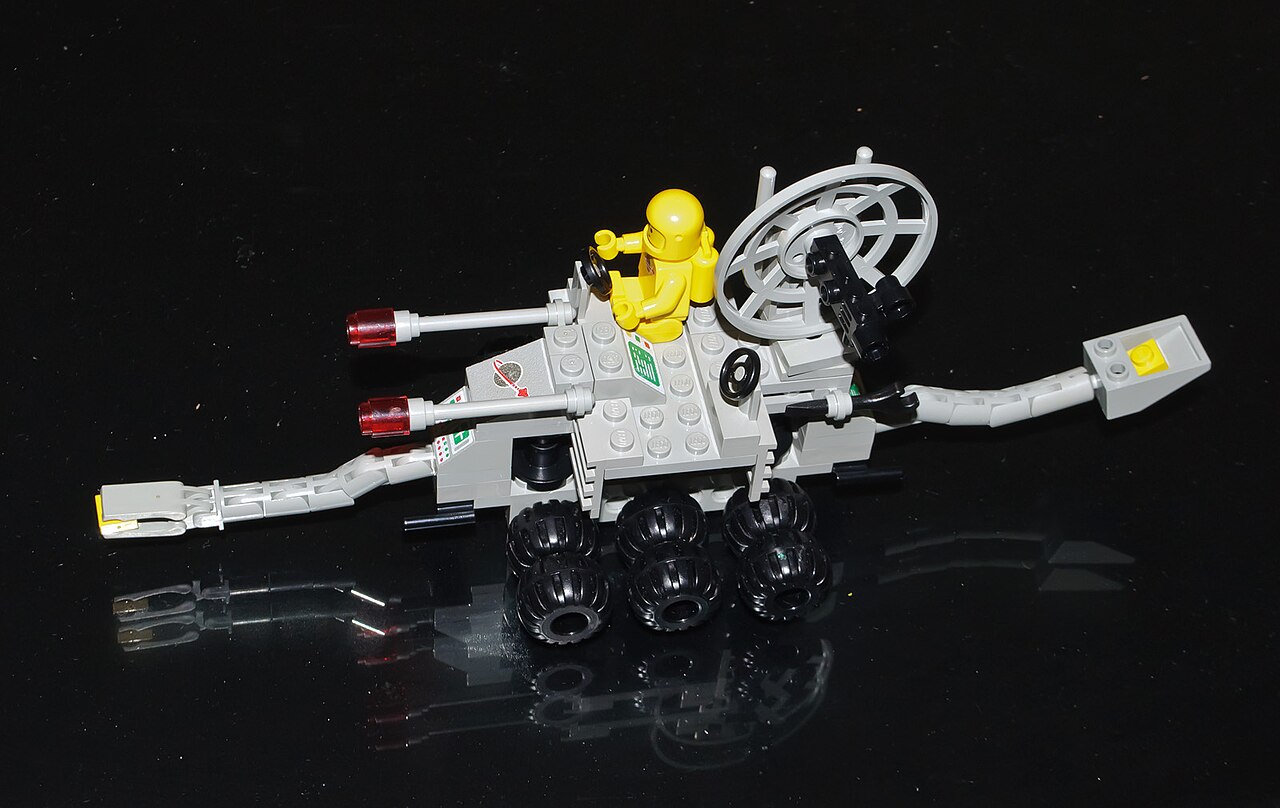
Be stricter when the set is valuable to you, when it may be described as complete, or when the colour or print affects how you identify the part. Be more relaxed for personal builds where the goal is simply to finish and enjoy the model. The honest answer is the one you can explain later.
Final practical advice
Buy replacement parts slowly enough to preserve the story of the set. Separate first, inspect second, log third, then add the pieces to the build. That small delay helps prevent a collection that looks complete but has lost track of what is original and what is only compatible.
Notes
[1] LEGO.com, “Replacement Pieces,” separates missing pieces, broken pieces, and buying pieces for a creation: https://www.lego.com/en-us/service/replacement-parts
[2] LEGO.com, “Pick a Brick,” describes browsing by piece type and colour, and says bulk upload files should include piece numbers and quantities: https://www.lego.com/en-us/pick-and-build/pick-a-brick
[3] BrickLink, “Reference Catalog – Parts,” lists LEGO parts through a detailed category tree: https://www.bricklink.com/catalogTree.asp?itemType=P